Thursday, February 9, 2012

Mobile Odin Pro 1.3 - Download


REQUIRES ANDROID 2.2 AND UP 

Mobile ODIN - Full firmware flashing straight from the device itself!

Mobile ODIN is the on-device firmware flasher of choice. Just throw those firmware files on your (internal or external) SD card, start Mobile ODIN and flash away.

!!! Your device must be rooted to be able to use Mobile ODIN !!!

If you use the EverRoot option, Mobile ODIN will root the firmware while you flash it. Checking out that new leaked firmware? No reason to lose root!

Currently supported devices:

- Samsung Galaxy S GT-I9000

- Samsung Galaxy S GT-I9000B *NEW v1.20*

- Samsung Galaxy S GT-I9000M *NEW v1.20*

- Samsung Galaxy S GT-I9003 *NEW v1.20*

- Rogers Captivate SGH-I896 *NEW v1.20*

- AT&T Captivate SGH-I897 *NEW v1.20*

- Samsung Galaxy Tab 7" GT-P1000

- Samsung Galaxy S2 GT-I9100

- Samsung Galaxy S2 GT-I9100T *NEW v1.20*

- AT&T Galaxy S2 SGH-I777 *NEW v1.20*

- Sprint Epic 4G Touch SPH-D710 *NEW v1.20*

- Samsung Galaxy Note GT-N7000

More devices to come!

Flashing with Mobile ODIN does NOT increase your custom kernel flash counter or make the yellow warning triangle appear.

----- MANUAL -----

Flashing with Mobile ODIN is easy. You start off by starting the app. The app will check your system has everything the app needs to continue (like root). It may need to download an additional package, so it is advised you have Wi-Fi available.

Now you should see the main Mobile ODIN screen. It will list a set of partitions. Clicking a partition will allow you to select a file from your SD card to flash to that partition. Do not worry about selecting the wrong file - Mobile ODIN will not let you. Separate files (named after the partition) as well as .tar and .tar.md5 files are supported.

From the desktop ODIN you may be used to "PDA", "PHONE", and "CSC" buttons. All three of these buttons have been replaced by the "Open file ..." button. This button will open the file you select from the SD card, and find all the partitions it can flash inside that file. So if you select a .tar file containing kernel and modem, the Kernel and Modem partitions will be set up to use that .tar file for flashing.

Now that we have selected what we want to flash, if you have the Pro version you can proceed to the EverRoot section. The EverRoot options allows you to root your firmware while it is being flashed. Never again will you be without root! Select here which apps you want to inject in the firmware that is being flashed.

Now that we are all done selecting partitions and configuring EverRoot, we continue to "Flash firmware". Mobile ODIN will gather all the information it needs and perform the flash. Before starting, however, it will check that your battery level is over 50%, and if applicable offer to verify MD5 checksums on the files you have selected to flash. If all is well, it will reboot into recovery mode, and flash the firmware you have selected.


Friday, February 3, 2012

Facebook for Android Updated

 The Facebook app for Android gets an update today morning. Its easier to access groups and pages with this update. The alerts are faster they say, I havent tested with the alerts yet but hope they come in time and on time.

You can use the applications connected with your profile and facebook and also play your favorite games on your Android handset :D This is cool right.


One new thing which I really liked is the ease of viewing the recent most posts from your buddies and family. It was awkward before to just see the highlighted posts which were the most happening ones and not the recent ones. This new update has got the solution to is.. See the image below..


Like me on FB @ Android Bubble

Saturday, January 28, 2012

Shush - Ringer Restorer

A very interesting application which makes a lil work easier for you. Very helpful as far as I've used it till now.


Shush! The name itself sounds facinating, doesn't it?? Ok what this app does is, when you lower your volume to zero, it pops up on the screen quickly and asks you when do you wish to enable your sound again. You can set a maximum of 12 hour gap.


Use the circle around the houra written and drag it sweetly to set your time at. 1/4th hour interval. Or you can also use the + & - signs to set the number of hours when you want to enable your sounds from the silent mode.


On the lower left of the popped up screen is a volume icon which helps you set the amount of volume you want your sounds to be enabled at.
Same way just tap on it and drag to set the volume level.


You can change the colour of the popup by going to the app in the applications menu. There are 2 available options:
1. Turn on / off the notification
2. Change Colour.. Just keep tapping on the colour and it gives u different options. Choose your favourite and set it right there.


My latest experience: I'd gone for a couple of days ago. It was a 3 hour movie. I dropped the volume to zero and shush! popped up and I the ringer enabling time to 3 hours which was the approximate time the movie would get over and forgot about it. Right after 3 hours the ringer got enabled automatically :D

Link: CLICK HERE


Crazy Fish Live Wallpaper

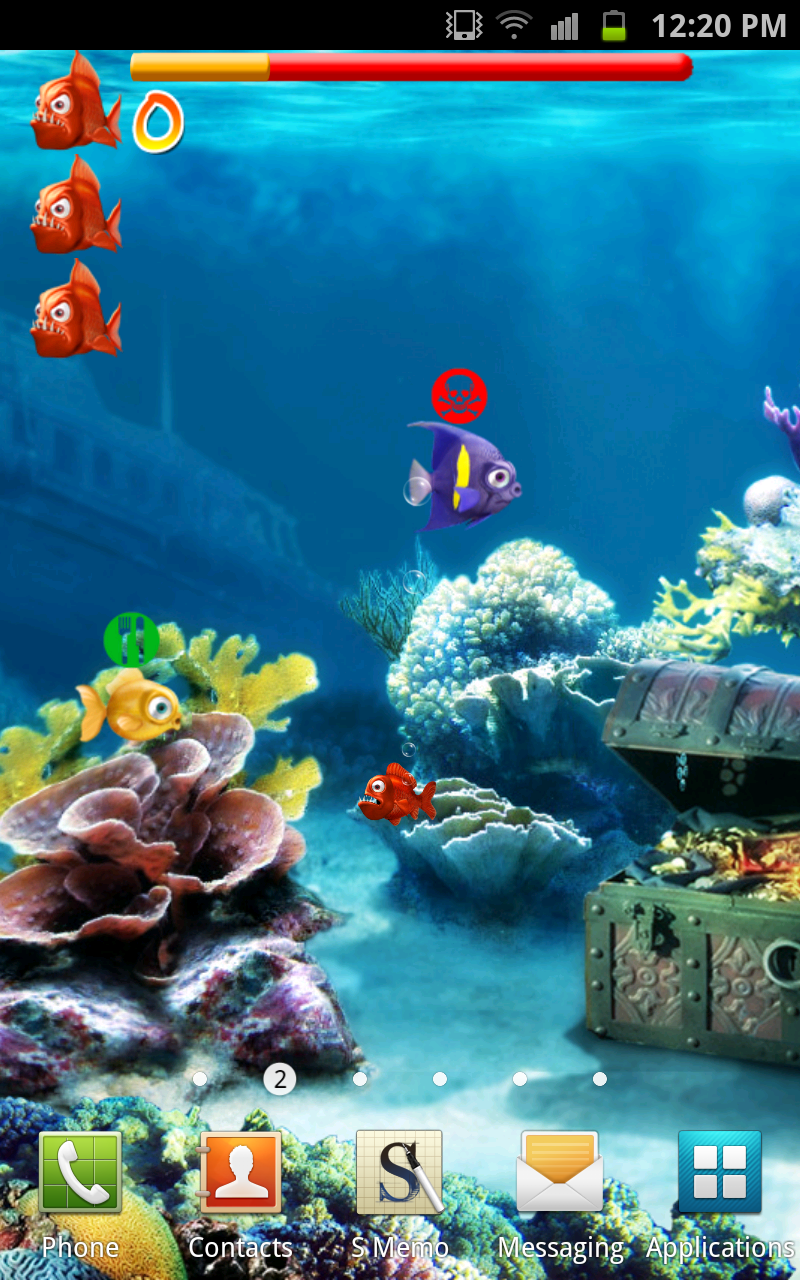
I came across this a week ago and I should tell you, Crazy Fish Live Wallpaper is really cool.. Its got a live wallpaper which lives on the background of your android screen and its got an inbuilt game which you can start and play whenever you have some free time.


The background looks lively, it doesnt suck battery and makes your phone look like a live aquarium.


About the game:
I have added lil' directions on the image below.. YOU are the lil red fish on the screen. The game is simple and gets tough as YOUR size increases. Your mission is to eat more and more Fish and grow bigger.


You have 4 lives. The green icon which appears above the yellow fish in the pic is what you are allowed to eat. I liked the icon selection of the developer. The green icon has a lil' image of a spoon and fork which says you can eat it.


Stay Safe from the fish which hold the red icon which indicated danger. Your not allowed to eat the fish with the red icon till you grow big enough and cross a particular score. As you pass that score, the red icons change to green and you can then go ahead and murder those fish and eat them.

The background sound is nice, it doesnt bore you. What I did on my home screens is, I added an extra plain screen just to play this game. Thats the best way to go about it and enjoy the game.


Tip: Do not drag the red fish on the screen cuz it then changes your home screens and confuses you. Just tap at the place you want the red fish to go and it runs there to save itself or eat other fish.


Link: CLICK ME


Have fun! Enjoy the wallpaper and the game  ツ
Cheers!!


Wednesday, January 25, 2012

Remove Apps Completely from Your Android

When we install apps in our Androids.. A lotta folders and files get created in the phone which will be visible when you go to the file manager.. You must have created just a couple of folders for music, images & videos but as you install and uninstall applications in your Android, the apps keep creating folders in your mobile and start storing some data/cache in those folders..

When you directly uninstall an app from mobile directly from the applications.. The app is deleted but what about those folders and files it had created for its running??
They do not get deleted. So, here's a way to go about it which deletes all folders and cache stored because of the app and then uninstall the app. Long press the centre key or go inside the task manager, Installed apps.. First thing to do it to Force stop the app.. Just do it. Then press the  clear cache key and it deletes all the stored files from the mobile and then press uninstall key and remove the app. I know it takes some to do this but it surely is helpful.. You can figure out in your file explorer and you wont find any such folders.

Related Posts Plugin for WordPress, Blogger...