Friday, August 28, 2015

How To Find Your Lost | Misplaced | Silent Android Device?

Lately, I'm coming across a lot of folks who have a habit of keeping their android devices on silent mode and then forgetting where they had kept it. Its simple to find it, its Android :D

I'll tell you my latest story. I was at work and I kept my Xiaomi MI4 on silent/vibration mode. This is my secondary phone so I dont bother much bout it ringing or being on silent. After work when I was packing up my stuff to get back home, I couldn't find my Mi4. Searched every drawer, table, cupboard but :(. I thought someone flicked it and I dint know. It was ringing but there was no answer from the other end. I was sad, left for my place from office. Half way home, I realized I have an Android Damn it. I stopped my car and explored the Android Device Manager. It located it, I showed a place somewhere near my office. I rushed back to my office, located it again and rang it using Android Device Manager, Guess what?? :D I was ringing in my office. I located where the sound was coming from and the mobile was hidden behind my keyboard in the pull out drawer. GOSH! My mobile wasn't flicked like I thought, I did not loose it, I got it back :D


Now here the deal, when you dont find your Android device, go to https://www.google.co.in/android/devicemanager 
Login with the same GOOGLE Email which is your primary Email on your Android device.
As soon as you login, the device manager starts hunting for the location of your device. 
You have got options to Ring the device, Lock and Erase the device. 

If you think you have misplaced it, ring it and you can locate it very easily as it starts playing the default/ringtone the phone is set on.

If you think you've lost it, erase the data, lock the phone.

Thats about it guys, lemme know if you guys have anything you wanna know. until next time, Ciao!

Tuesday, May 20, 2014

OnePlus One Review - MKBHD


He just released this review today morning. The best phone reviewer with superb high definition videos. Watch it and get all the details of the phone right in thie video.

+The Sexy Techy 

Wednesday, May 7, 2014

Note 3 Firmware Update in India - UDND1

The international version of Samsung Galaxy Note 3 N900 got a minor firmware update in India. Updated its build number to version ND1.

If you havent received it yet on your Note 3, Go to Settings > General > About Device and click the software update button. The new update is just a lil' over 28 mb.


Textra Sms App Updated - Adds a lot of Features

Textra, one of the best SMS applications on android, my personal favorite, simple and has all the features you need in an Sms app on your phone.

The latest update has got you some really funky features which would ease of use.


They added the mark all shortcut which shows it self as soon as you select any one msg from your list of threads. Please see the picture, the tick box on the right marks all your messages when you tap it.


The app settings lets you +1 the app directly from the top label in the settings.

You have the message/sms sent sound now which notifies you as soon as your sms is sent.


A quick compose option is added now which lets you compose an sms directly from your notification drawer.

Fantastic stuff!


LG G3 Leak - Whattay Dashing Look


Black in color and a sexier look from behind. Hotter Volume rockers, dual led for the camera.

I liked the LG G2 as a phone, was a great performer but the look from behind carrying plastic was a turn off. The camera was good, performance of the phone was fantastic except the outdated UI which did not impress me enough.

Hope G3 turns things around, like the Sexy UI which showed up in its previous leak. Im sure that I ll give it a try if this is a true leak, hope it is.

HTC One M8 gets its 1st Software OTA Update

The International version of HTC One M8, the best smartphone of the year till now got its first OTA update in the evening today. Software Update 1.56.720 which was only 77 MB.


It said that the update fixes the bugs and it had system enhancements.Hope it increases the performance of the already well performing HTC One M8.


Lemme know your feedback after updating.

Sunday, April 13, 2014

Samsung Markets in Style: Hands on Samsung Galaxy S5

Samsung Galaxy S5 - White


Samsung Galaxy S5 - Black


I couldn't find the blue one to get my hands on it.. 

But look what came in front of me when I went to get my hands on the all new Samsung Galaxy S5 on April 11th, the day it started selling in retail stores in the market. Samsung in Hyderabad was going to all the stores which were selling its mobile to promote it. Maybe give it to a customer who was lucky to get it from there hands. Snap a couple of pics and promote their all new Flagship phone in the best way they can..


Thursday, April 10, 2014

Mailbox - The best Email app for iPhone is here for Android


Mailbox, the number one email app on iPhone for a long time now is available to be downloaded for Android.

Mailbox was bought by Dropbox, the most happening and famous cloud storage application for mobiles and desktops/laptops a few months ago.

A lotta downloads happening. Wont take mush time before the app reaches the top of the list place on Android.. Get going and download your Mailbox right now.

Samsung Galaxy S5 - Ten things You should know

The Samsung Galaxy S5 has seen improvements in almost every area of the device. There were no new, insane processors available to put in the device, the QHD displays, while ramping up production, just could not be produced in the quantities needed for the expected sales of the Galaxy S5. Adding 1GB of RAM to make a total of 3GB, while sounding more impressive than 2GB, would not have made a significant enough of a difference in the Galaxy S5′s performance. So while Samsung stuck with refinements, these changes make the Galaxy S5 a better overall device than the Galaxy S4. In this article, we will look into ten areas of changes that you might not be aware of that make this device a better smartphone than you might think of at first glance.

Where is the bloatware? Samsung, maybe at Google’s request or maybe from the cries of the masses, has actually decreased the amount of bloatware on the Galaxy S5 (and hopefully on all future devices). You can still get all the Samsung Apps you want  - under the Apps Tray, there is a category called  Galaxy Essentials, where you will be redirected to the Samsung App Store and download any of their Apps you desire. You want WatchOn or Samsung Wallet…no need to fret, they are there. TouchWiz has finally started a ‘diet’ that we hope will continue to future devices.

Navigation has changed – Samsung still has their familiar physical Home button, flanked on the right with the usual capacitive Back button, but on the left, the Menu button has been replaced with a Recent Apps button. You must now use the menu options from within the App itself…as Google and Android intended. This will help give getter consistency across devices.

Create App Tray Folders – To help keep your App Tray less cluttered you can create folders of like-Apps, a Games folder, perhaps…it will save time scrolling or paging through a bunch of ‘loose’ Apps. To create a new folder, simply open the App Tray, press the menu button in the upper right, and create your folder, after which you can open the folder and place the Apps that you want into that newly created folder.

The new Toolbox – if you enable the ‘Toolbox’ under the Settings ->Sound and Display area, Samsung will allow you to place up to five of your favorite Apps to the Toolbox. There will always be displayed a ‘floating button’ for you to have immediate access to those favorite Apps no matter where you are.

One-Handed Operation – The Galaxy S5 is a rather large device to operate with one hand so Samsung added this option by quickly swiping from the side of the display to the center and back.  If you start your swipe from the left, the shrunken display moves to the left and if you swipe from the right, it will then move to the right on the display.  It is a feature that was brought over from the Galaxy Note series.

Sideways Fingerprint Scan – The Galaxy S5 has the built-in fingerprint scan to unlock the device, but how many people want to hold their device in one hand so that they can swipe their finger nice and perpendicular to the device. No problem…when you initially register your fingerprint, just hold the device in one hand and swipe you finger or thumb on an angle – the scanner will register it and then you can unlock it holding it the same, more natural way.

One or Two Finger Swipes – If you swipe down with one finger on a home screen, the quick notifications will ‘roll down’ for you to make a choice, however, if you swipe down with TWO fingers ALL of your Samsung options will appear on one screen. This is actually a function of Android that Samsung has used to make selecting options easier.

True Multitasking in Two Windows – This is another feature Samsung grabbed from their Galaxy Note series that allows you to open up to two Apps at the same time, in their own windows on the display. You can resize each window – for instance, you can watch a video in the larger window while you check your Twitter account or look through emails in a smaller window.

Display Your Steps on the Lock Screen – It is no secret that the Samsung Galaxy S5 is ‘Geared’ (pun intended) towards helping us become healthier with their new built-in Heart Rate Sensor on the back near the LED Flash and their new S Health 3.0 App. There is a pedometer onboard to count your steps throughout the day and just by glancing at the locked screen, the number of steps you have taken will show up there without having to unlock the device.

Live HDR Mode – the new 16MP ISOCELL camera has a HDR (High Dynamic Range) mode that you can turn on and see what your photo will look like BEFORE you press the capture button.  Before this ‘live’ mode, you would have to first snap the picture and then you could view it in the HDR mode. This is a great idea and should aid in taking those special photos.

Source: Not my compilation

Monday, July 29, 2013

Samsung Galaxy Note 3 Specs Confirmed

Earlier the phone was reported to be coming up with a 6 inch screen but now Business Daily has confirmed it for 5.7 inch. The reason for the downgrade of the phone screen is still not sure.

Finally the Samsung Galaxy Note 3 specs that have been confirmed are:
Screen - 5.7 inch 
Ram - 3 GB RAM
Processor - Snapdragon 800 
Android -  4.3

It will be 4g compatible, metallic outside edge with a plastic finished body as was displayed in the Samsung Galaxy S4.

The price of the smartphone is still not clear and the release date of Samsung Galaxy Note 3 is being expected around september first week.

Thursday, July 25, 2013

Manually Pull The Android 4.3 Jelly Bean OTA Update


marquee_jb_4_3_flo
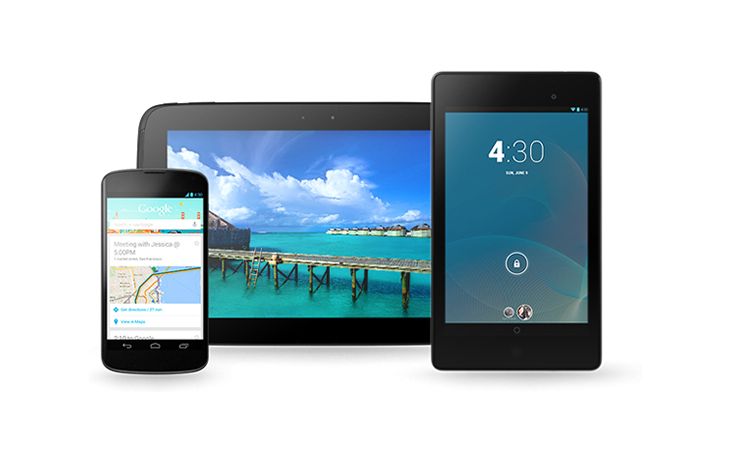
Earlier today, Google unveiled Android 4.3 Jelly Bean along with the new Nexus 7. The company also announced that it has started rolling out the Android 4.3 OTA update for the existing Nexus devices, including the Nexus 4, Nexus 10, Galaxy Nexus and the 2012 Nexus 7.
If you own a device that is getting the Android 4.3 Jelly Bean update from Google, and cannot wait for the OTA update to land, here is a simple trick to try and manually pull the update from Google’s server.
Before you proceed to follow the steps below, keep in mind that they are only applicable if you are running stock Android, without root access or any custom recovery installed. Since the OTA updates are staged roll-outs, it is not necessary that the steps below would work. However, if the OTA update file is already present in the nearest Google server located to you, your phone can very well manually fetch the update and install it.

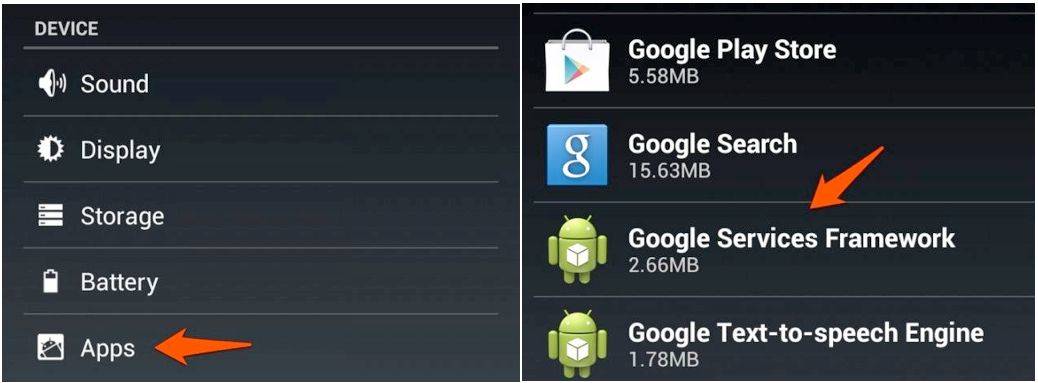
1. Head over to Settings -> Apps on your Nexus device, and swipe to the All apps tab.
2. Now, you will need to find the ‘Google Services Framework’ system app from the list of apps installed on your device.

4.3_gsf

3. Then, proceed to tap the Force Stop option, followed by Clear Data. 
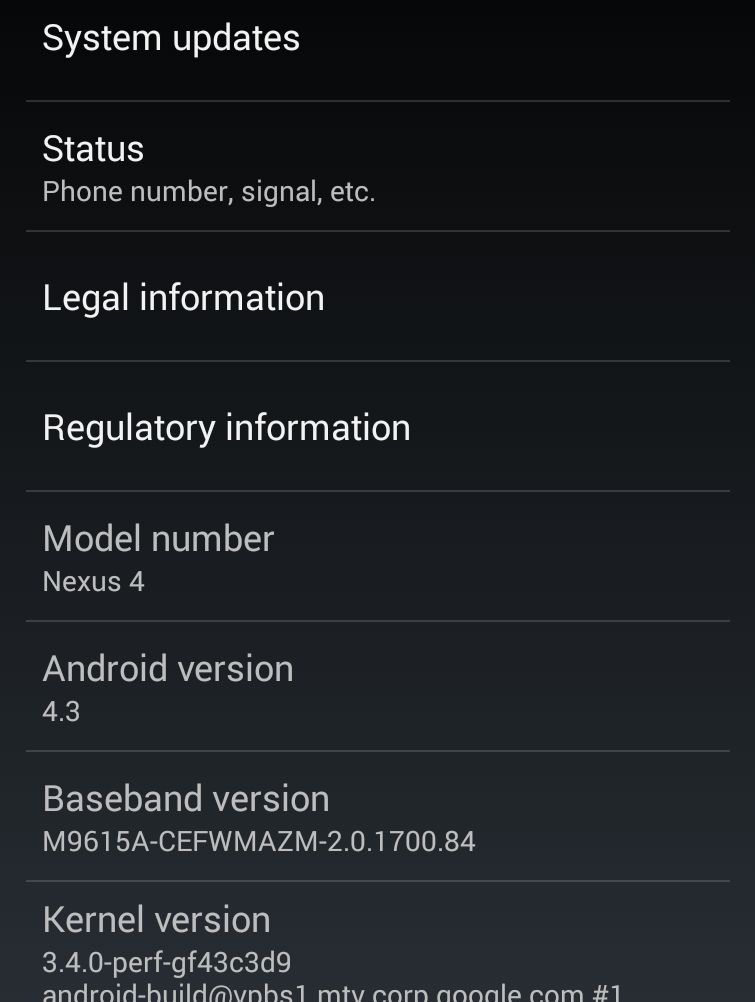
4. Restart your Nexus, and after a couple of minutes head over to Settings -> About Phone -> System Updates. Now, tap the Refresh button and hope that the OTA update file is already present on the server your phone is connecting to.

android4_3

If all goes well, your Nexus device from Google must be downloading the OTA update to Android 4.3 Jelly Bean. If not, well, you can try to repeat the above steps a few times. If that fails as well, you should try the above steps after a couple of days.
Keep in mind that the above steps won’t work for the 3G variant of the Nexus 7 (2012) and the CDMA variant of the Galaxy Nexus, since Google has not started rolling out the OTA update to these devices.

Update: If you are unable to download apps from the Play Store after this, remove and re-add your Google account to fix this issue.

Friday, July 19, 2013

SAMSUNG GALAXY TAB 3 T211 TABLET (WI-FI, 3G, 8 GB)


Key Features

  • 7-inch TFT Capacitive Touchscreen
  • Android v4.1 (Jelly Bean) OS
  • 1.3 MP Secondary Camera
  • 3 MP Primary Camera
  • Expandable Storage Capacity of 32 GB
  • HD Recording
  • 1.2 GHz Dual Core Processor
  • Wi-Fi Enabled


Price: RS.17745


Samsung Galaxy Tab 3 T310 Tablet - Wifi Only


Key Features

  • 1.5 GHz Dual Core Processor
  • HD Recording
  • Expandable Storage Capacity of 64 GB
  • 5 MP Primary Camera
  • 1.9 MP Secondary Camera
  • Android v4.1 (Jelly Bean) OS
  • 8-inch Capacitive Touchscreen
  • Wi-Fi Enabled
Price: Rs. 21945


SAMSUNG GALAXY TAB 3 T311 TABLET - 3G + Wifi


Key Features:
- 8-inch Capacitive Touchscreen 
- 1.3 MP Secondary Camera 
- Wi-Fi Enabled 
- 1.5 GHz Dual Core Processor 
- Android v4.2.2 (Jelly Bean) OS 
- HD Recording 5 MP Primary Camera 
- Expandable Storage Capacity of 64 GB

Price: Rs.Rs. 25725


Tuesday, June 11, 2013

Boot your Android into Safe Mode for Troubleshooting

Android is a relatively stable mobile operating system, but every now and then, performance issues arise. Safe mode is a great tool that you can use to troubleshoot these issues. Safe mode boots your phone running only the apps that came with the phone – that means no third-party apps. Therefore, if your phone runs without an issue when you’re in safe mode, it’s a pretty good bet that the problem isn’t system related, and instead a third party app you downloaded.

Method 1 (most Jelly Bean devices)
1. Hold down the physical power button on your device.
2. Long-press the “Power off” option that appears.


Thursday, May 16, 2013

Nexus 4 Officially Launched in India - Rs.25999

LG and Google announced that Nexus 4, the official Android phone, would be available in India in the coming days at an MRP of Rs 25,999. Yesterday, the device became available for pre-order on Flipkart, an e-commerce site, starting at a price of Rs 25,990.

The Nexus 4 boasts a 4.7-inch screen with 768x1280 pixel resolution. It is powered by a 1.5GHz Qualcomm Snapdragon S4 Pro processor with 2GB RAM and runs Android 4.2 (Jelly Bean). It comes with an 8-megapixel rear camera and a 1.3-megapixel front camera and a 2,100mAh battery. It's worthwhile to point out that the Nexus 4 doesn't feature a microSD slot or expandable storage of any other kind.

Pre Order from Flipkart

+Android Bubble 

All New Google Hangouts - On your Desktop, Android and iOS


Google just announced its all new Messaging app Google Hangouts, which replaces tghe talk app on Android and your desktop chatting application too. 


Description

Hangouts brings one-on-one and group conversations to life with photos, emoji, and video calls for free. Connect with friends across computers, Android and Apple devices. Brought to you by Google.
● Say more with photos and emoji.
● See when people are together in Hangouts, when they’re typing, or whether they’ve seen your message.
● Turn any conversation into a video call with up to 10 friends.
● Message friends anytime, even if they're not connected right now.
● Use Hangouts on computers, Android and Apple devices.
More Hangouts awesomeness:
● Hangouts stay in sync across devices so you can start or continue them anywhere.
● Choose from hundreds of emoji to help you make your point
● See what you talked about in the past, including shared photos and your video call history.
● Get notifications just once. Once you see an alert, you won’t see repeats on your computer or other Android devices.
● View collections of photos shared from each of your Hangouts.
● Snooze notifications at times when you’d prefer to be undisturbed by alerts.

Google Play Store 4.1.6 - Download

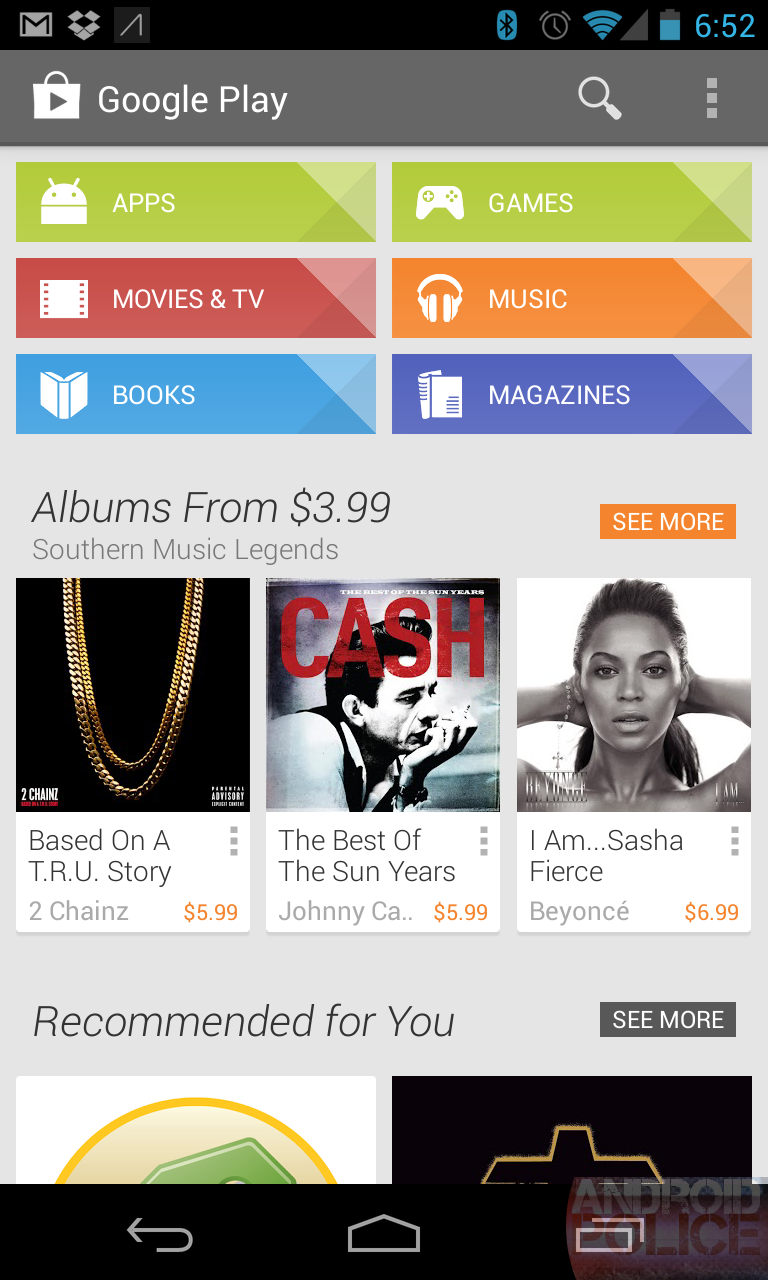
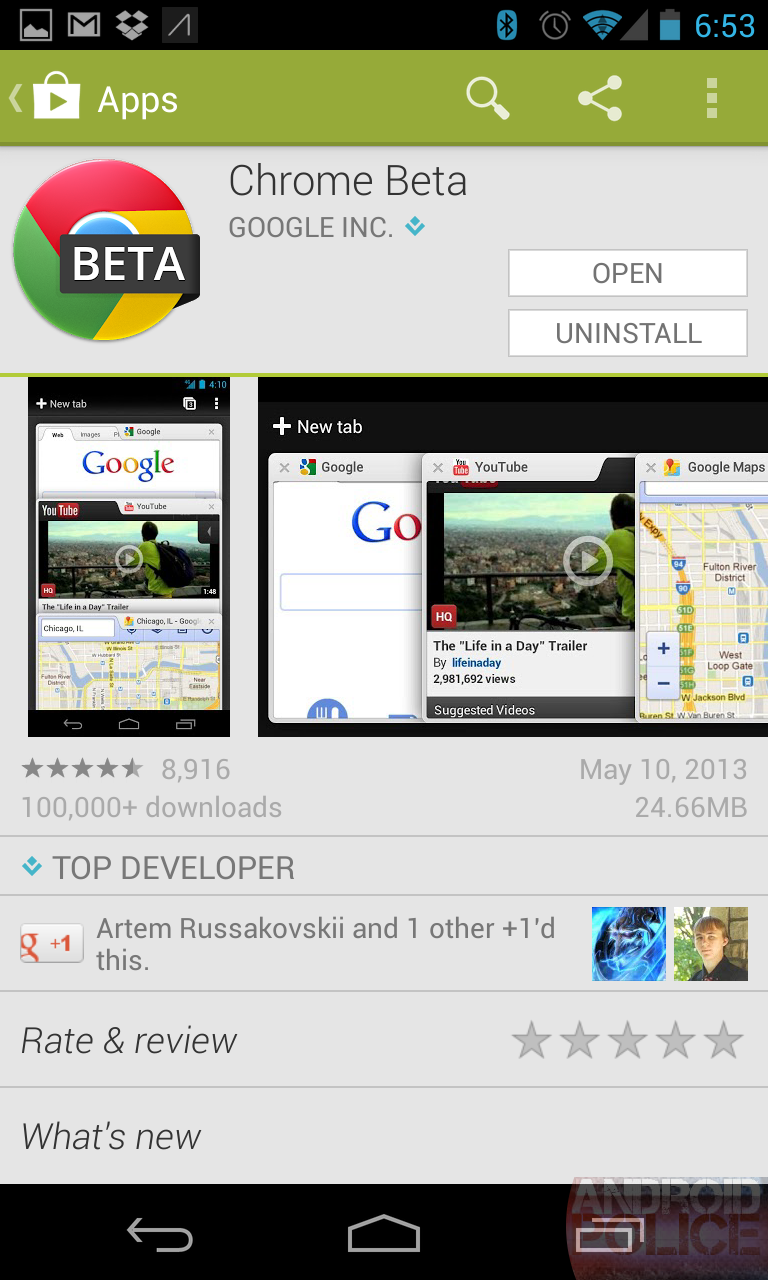
A hot new Play Store update just hit the internet. We're now up to version 4.1.6. So far we've spotted a much nicer looking button and wishlist designs, more consistent menu text, and a few minor visual tweaks, like new open/uninstall buttons.


Here's the new content section buttons, which are a lot more inviting than the old designs. The open and uninstall buttons got a slight tweak, too.
wm_2013-05-14 18.52.25wm_2013-05-14 18.53.57

Source: Android Police

Sunday, April 28, 2013

Samsung Galaxy Android devices, EMI offer to end soon

Samsung Galaxy series, 12 months emi, no extra cost.. till 30th April.. go 4 it..

Go for the kill, get your device and pay it the money easily, divided equally on  monthly bases..

Monday, April 15, 2013

Facebook Home Patched for any Mobile - Download


To install Facebook Home on your Android phone (most probably will only work with HTC One X, HTC One X+, Galaxy S III and Galaxy Note II), you will need the updated versions of Facebook for Android and Facebook Messenger app.


After installing the latest versions of both the apps from Google Play, download Facebook Home using this link (MirrorMirror & Mirror) (for unsupported devices see the update below) and install it on your Android phone like any other app. You might need to allow installation of files from unknown sources in the settings.
Patched Facebook Home APK now available for installation on all Android devices
If you want to install Facebook Home on an unsupported device (phones other than One X, One X+, S III & Note II). There is a patched Facebook phone APK available now thanks to Modaco. For the patched APK to work, you need to uninstall the current versions of Facebook app, Messenger app on you Android devices and install the following patched APKs. When you are done with this, install this Facebook Home patched APK.
Once you have installed all three APKs, you are good to go.
Link:  DOWNLOAD

Related Posts Plugin for WordPress, Blogger...